Professional PDF Editing - Add page numbers with customizable formats, positions, and styles
Multiple Format Options - Numerical, Roman numerals, or custom page numbering formats
Secure & Reliable - 30+ years of experience with strict privacy policies
PDF DOCUMENT
PAGE NUMBER SETTINGS
WPS Office provides comprehensive page numbering tools with multiple formats, customization options, and professional features for any PDF document.

The format of page numbers in WPS Office follows standard conventions including numerical format (1, 2, 3...), roman numerals (I, II, III...), or custom formats like page 1/X for clearer reading. Supports odd pages to the right, even pages to the left for printed books.
WPS Office offers extensive customization options, allowing you to choose the position, style, font, color of page numbers, and range of pages to match your document's aesthetics and branding requirements.
Choose from multiple position options and alignment settings
Customize font family, size, color, and styling
Apply page numbers to specific page ranges
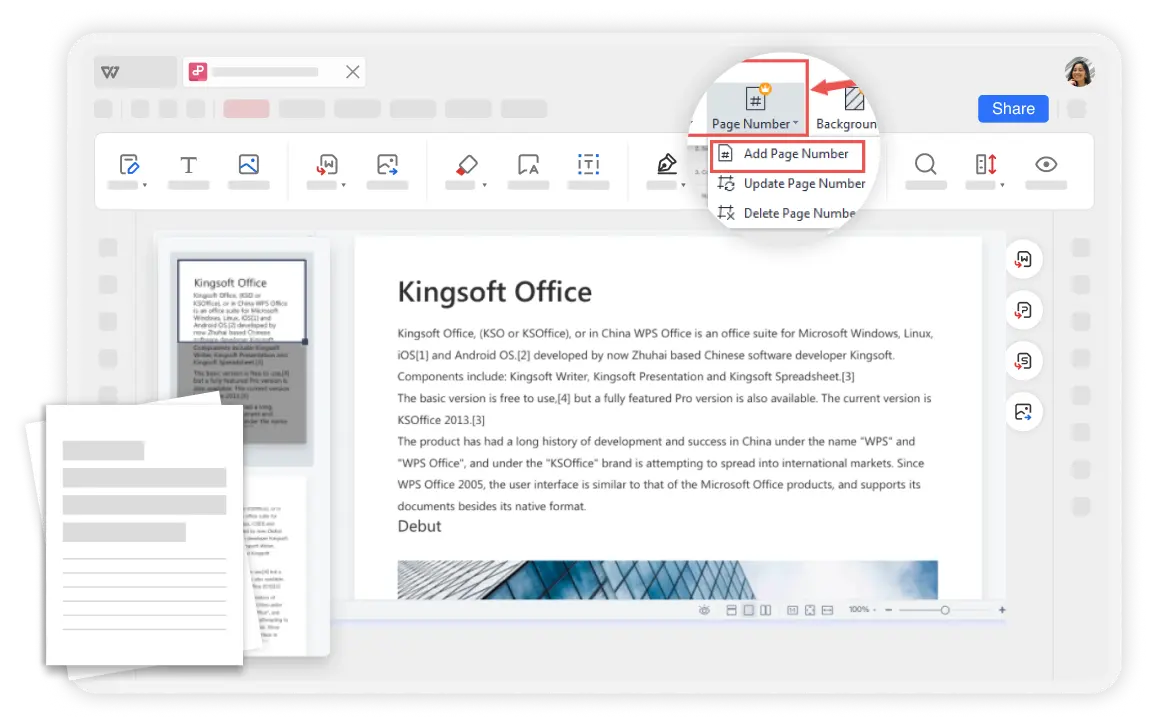
This feature excels in professional settings due to its flexibility and ease of use, ensuring seamless integration of page numbers into documents of various types including books and publications.
WPS Office simplifies adding page numbers to PDF files with an intuitive interface. Compared to online software, WPS is more secure with over thirty years of experience and strict privacy policies.
Save time and effort by adding page numbers to multiple PDF pages at once. Set page ranges and apply consistent numbering across large documents efficiently.
Launch WPS Office and open your PDF file. The intuitive interface makes it easy to access all PDF editing tools including the page numbering feature.
Navigate to 'Edit' > 'Add page number', choose the style and format of the page numbers, and specify the page range for application.
Preview the position and appearance of page numbers in the PDF, ensuring accurate and professional results before finalizing your document.

WPS Office offers a comprehensive suite of PDF tools and office applications alongside the AI Photo Enhancer. From PDF editing to document creation, get everything you need in one powerful platform.
Find answers to common questions about adding page numbers to PDFs and explore trending guides for advanced PDF management.
Complete guide to adding page numbers to PDF files with professional formatting and customization options.
Learn how to add page numbers in Word documents for academic papers and professional documents.
Professional guide to setting different page number positions for odd and even pages for book and publication layouts.
Step-by-step guide to inserting page numbers in Word documents using WPS Office on Android devices.
Experience the most convenient way to add page numbers to PDF files with professional customization options and secure editing tools.
Secure & reliable
Full customization
3-step process
Available on all platforms:

Add page numbers to PDF files with complete customization options - completely free.


