Our PDF annotator instantly annotates, marks up, and comments on text or images in PDFs, helping you to highlight important information.
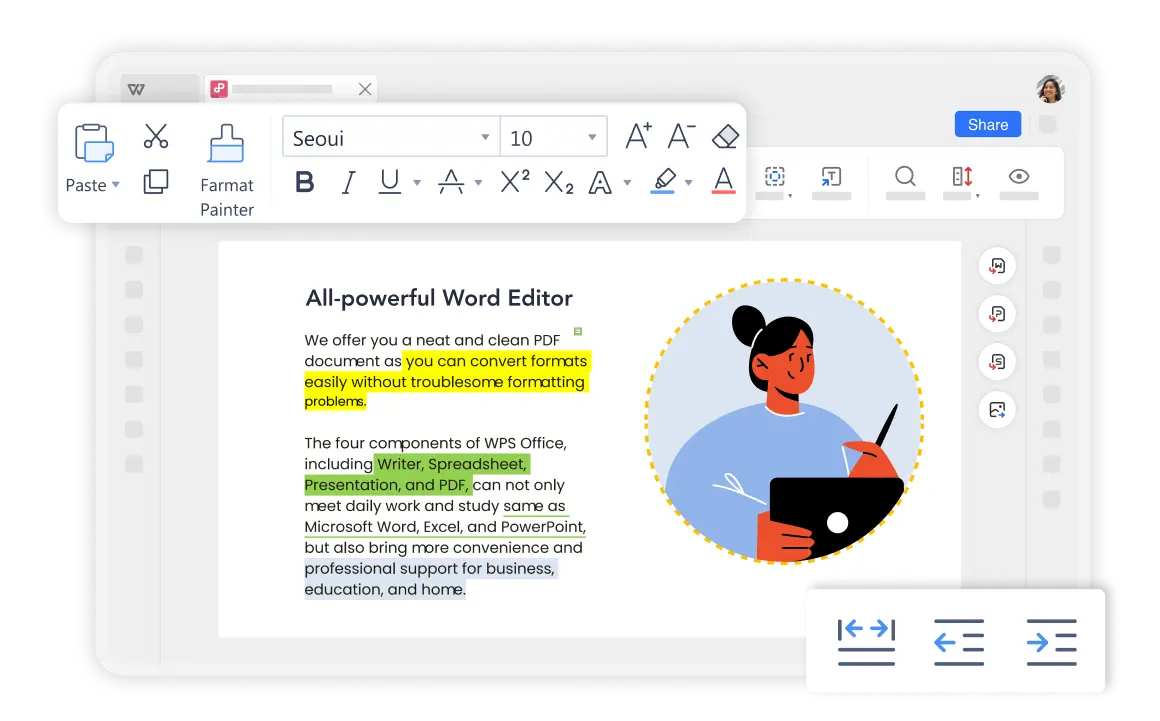
With WPS Office PDF Annotator, you can easily highlight, comment, and markup PDFs with professional annotation tools that make your documents come alive.

With WPS Office PDF Annotator, you can easily highlight and underline text in a PDF document. It helps to quickly find the important information from a large PDF file.
This free annotation tool lets you effortlessly mark up text using a range of colors. With just a click, you can highlight specific areas, or you can choose to highlight by sentence or paragraph, making your PDFs look even better.
Choose from various highlight colors for different content types
Highlight by sentence, paragraph, or custom selection

When you're annotating PDFs just the way you like, WPS Office PDF annotator goes the extra mile with cross-platform syncing. With a single account, you can sync files across Windows, Mac, Android, and iOS devices.
Starting from opening your PDF document, you can use the Highlight, Comments, and Notes features to annotate PDFs. Additionally, WPS Office provides a variety of colored pens, so you can easily emphasize key information.
If you've got scanned PDFs, like e-books or textbooks, WPS Office PDF annotator is the way to go. Its OCR PDF feature can turn scanned PDFs into searchable, editable documents.
Open your PDF document in the WPS Office PDF annotator. Simply launch WPS Office and select the PDF file you want to annotate - no external uploads needed.
Navigate to 'Home' > 'Highlight', then select the color and text you want to annotate. Choose from multiple colors and annotation styles.
Select 'Comment' > 'Note Mode' to make your notes on the PDF. Add detailed comments and share your insights with others.

When you're annotating PDFs just the way you like, WPS Office PDF annotator goes the extra mile with cross-platform syncing. With a single account, you can sync files across Windows, Mac, Android, and iOS devices. This means you can annotate wherever you are and access your PDFs whenever you need them, no matter which device you're using.
Starting from opening your PDF document, you can use the Highlight, Comments, and Notes features to annotate PDFs. Additionally, WPS Office provides a variety of colored pens, so you can easily emphasize key information in your PDFs. You can also use the handwriting tool for annotations, making it as simple and seamless as taking notes in a book.
WPS Office offers a comprehensive suite of PDF tools and office applications alongside the AI Photo Enhancer. From PDF editing to document creation, get everything you need in one powerful platform.
Find answers to common questions and explore popular guides about PDF annotation.
A comprehensive guide to highlighting text in PDF documents using WPS Office's annotation tools.
Learn 3 common methods to annotate PDF files directly in Google Chrome browser for quick and convenient editing.
Troubleshoot common issues when you can't highlight text in PDF files and find the real solutions that work.
Unlock new possibilities for scanned documents by learning how to use OCR features in WPS Office to make PDFs searchable and editable.
Experience the most powerful PDF annotator with cross-platform sync, colorful highlights, and professional annotation tools - all free forever.
No limits, no watermarks
Windows, Mac, Mobile
Highlights, notes, comments
Available on all platforms:

Experience professional PDF annotation with cross-platform sync - completely free.


