Delete PDF Pages Instantly & Free Remove Unwanted Pages
Instant Page Deletion - Select and delete unwanted pages with a simple click
Custom Page Range - Delete multiple pages at once with customizable page ranges
No File Uploads - Work directly in WPS Office, keeping your documents secure
Delete PDF Pages You Don't Want
WPS Office's intuitive PDF page remover makes it easy to select and delete unwanted pages from your PDF documents with precision and control.
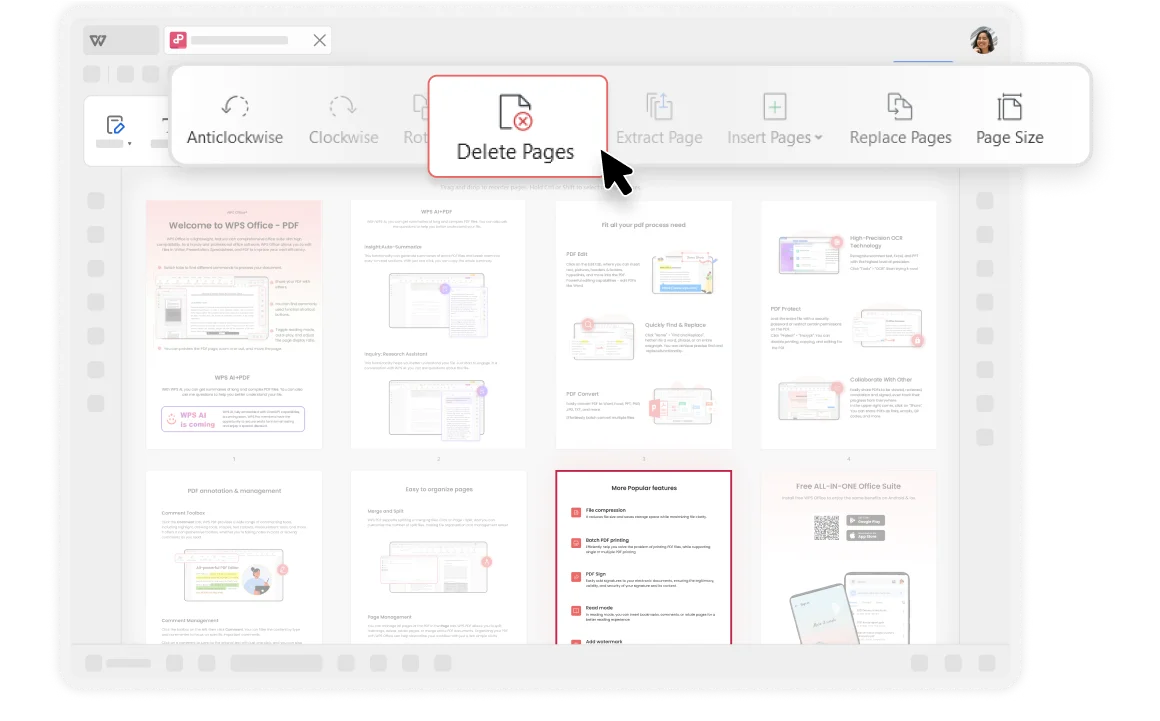
Instantly Delete Selected Pages
WPS Office's intuitive interface makes it easy to navigate and use the free PDF Page Remover. Simply select the PDF pages you want to remove and click "Delete Pages" to complete the deletion instantly.
- Visual Selection: Click on page thumbnails to select pages for deletion with visual feedback.
- Batch Processing: Delete multiple pages at once for efficient document management.
- Instant Preview: See changes immediately before saving your edited PDF document.
Customizable Delete Page Range
With WPS Office's PDF Pages Remover, you can customize which pages you want to remove from your PDF documents by setting specific page ranges. Perfect for removing chapters, sections, or unwanted content.
Range Selection
Delete pages 1-5, 10-15, or any custom range
Individual Pages
Remove specific pages like 3, 7, 12 individually
Blank Page Removal
Automatically detect and remove blank pages

Security & Reliability
WPS Office provides robust PDF editing capabilities that adhere to industry standards for file compatibility and format preservation. With over thirty years of experience and strict privacy policies.
Reduce File Size
For larger PDF documents, deleting unnecessary pages helps reduce the size of the PDF file, making it easier to share or store. This saves storage space and speeds up file transfers.
Protecting Sensitive Information
If your PDF contains sensitive information, deleting unnecessary pages helps protect this data. Remove irrelevant or redundant pages to reduce potential risk of data breaches.
3 Simple Steps to Remove Pages
Open a PDF
Open your PDF document in WPS Office. No external uploads needed - work directly within the secure application environment where your files remain private.
Select and Delete Page
Click on the "Page" tab in the top menu. Select the pages you want to delete from the thumbnail view, then click "Delete Pages" to proceed.
Click the "Delete" button
Delete selected pages or custom set the deleted page range, then click "OK" to confirm. Save your edited PDF document with only the pages you need.

Explore More Features
WPS Office offers a comprehensive suite of PDF tools and office applications alongside the AI Photo Enhancer. From PDF editing to document creation, get everything you need in one powerful platform.


FAQs & Hot Topics
Find answers to common questions about deleting PDF pages and explore helpful guides and tutorials.
Frequently Asked Questions
Hot Topics
Learn How To Delete Pages From PDF Documents
Comprehensive guide covering different methods to delete pages from PDF documents using various tools and techniques.
How to Delete PDF Pages in a Few Simple Steps
Quick and easy step-by-step guide to removing unwanted pages from your PDF documents efficiently.
How to Delete Blank Pages in Your PDF File
Learn how to identify and remove blank or empty pages from your PDF documents to create cleaner, more professional files.
How to Delete PDF Pages Without Using Acrobat
Discover free alternatives to Adobe Acrobat for deleting PDF pages, including WPS Office and other powerful tools.
Delete PDF Pages Like a Pro
Experience the easiest PDF page remover that lets you delete unwanted pages instantly while keeping your documents secure - available in WPS Office.
available in WPS Office
No hidden costs ever
Instant Deletion
Remove pages in seconds
Secure & Private
No file uploads needed
WPS Office apps:

Start Deleting PDF Pages Today
Free PDF page remover tool with instant deletion and secure processing.